
Help / Walkthroughs
Walkthrough: billing and the books
 Film coming soon
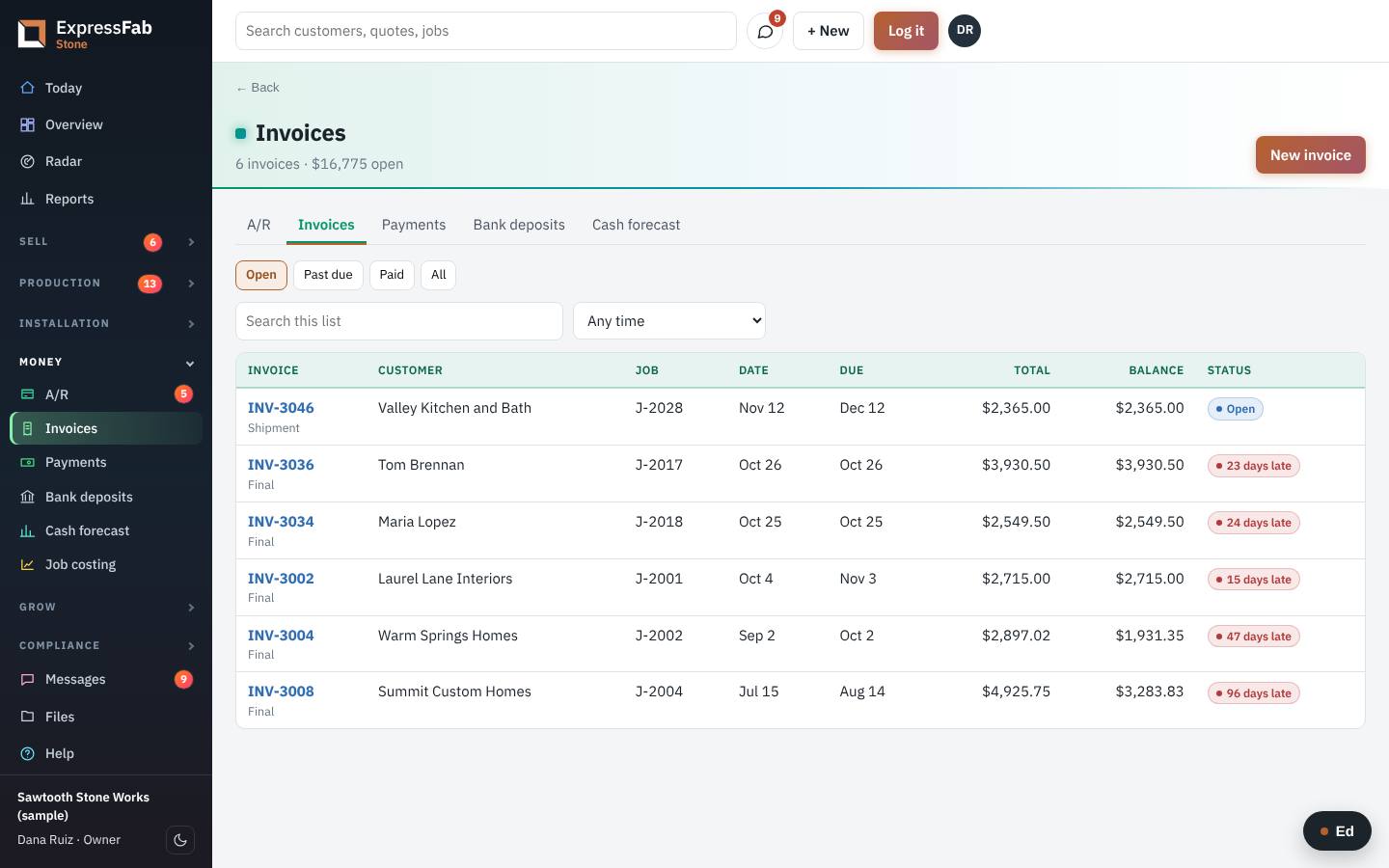
You bill each job at the right moment, record what comes in, and chase what is late.
What comes to you
- A prompt to bill the deposit when a customer signs.
- A prompt to bill the final invoice when the customer signs off the finished job.
- Anything that was skipped. It waits on Ready to bill.
- Payments customers make online. Those record themselves.
Each morning
- Click Today.
- Read Ready to bill and Past due and cash this week.
Bill a job
- Click Money, then Billing.
- Find Ready to bill on the page.
- Click the job to open it.
- On the job's Money card, click Bill the deposit, Progress bill or the final invoice.
- Check the lines.
- Click Email it.
Record a payment that came by check
- Open the invoice.
- Click Record a payment.
- Pick how it came and type the check number.
- Click Save.
Chase what is late
- Click Who owes what.
- Click Statement on a customer to see what they owe.
- Click Email statements to everyone past due to send them all at once.
Where it goes next
- A paid deposit ticks the deposit line on the job's checklist. The office can then book the work.
- Every invoice and payment goes to QuickBooks by itself, once it is linked.
- The owner sees the cash forecast on Today and Overview.
This is the manual that's inside the app, where every screen also has Ed to ask. Still stuck? Contact support.