
Help / Walkthroughs
Walkthrough: production and the shop floor
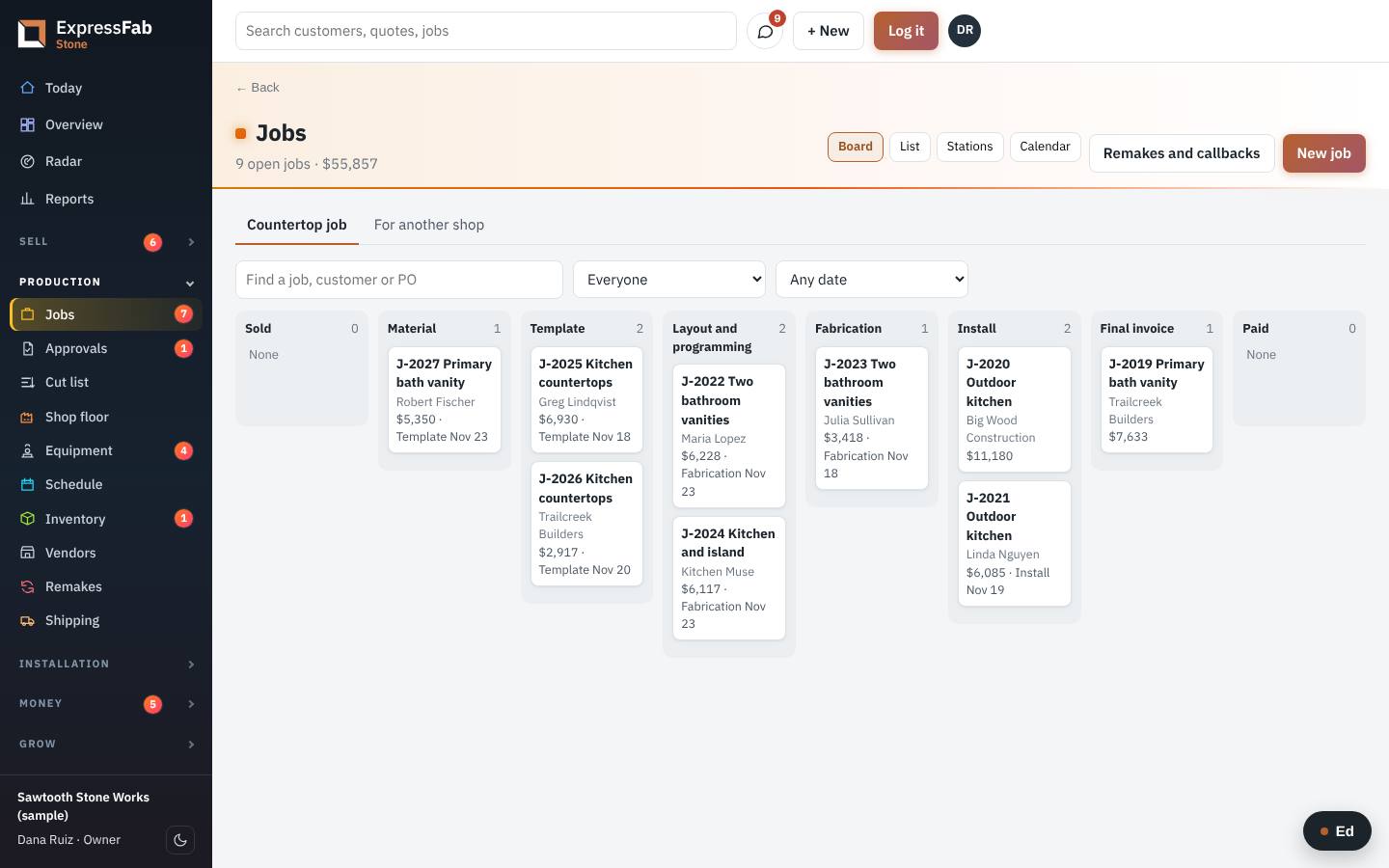 Film coming soon
You build the job. The app tells you what is ready to build, and lets you say where each job is with one tap.
What comes to you
- A job that has its deposit, its approved drawing and its material. It is in your step on the Jobs board.
- A note from the office on the move, if they left one.
- A printed traveler that rides with the work.
The production manager, each morning
- Click Jobs.
- Click Stations. Each crew and machine shows what is at it, what is late and what is coming.
- Click Cut list to see what is ready to cut and what is not, with the reason.
- Open Today. Needs attention lists jobs that are late or on hold.
- To print travelers, click List, tick the jobs, and click Print travelers.
On the floor, at each job
- Scan the code on the traveler with your phone.
- Tap the place the job is now, for example the saw.
- Under Your time, tap Start at your station.
- When you finish, tap Stop my time.
- When the step is done, tap Done: move to the next step.
- A box opens. Type a note if the next person should know something. Tap the button to move it.
If something is missing
- Scan the traveler.
- Tap Something's missing.
- Say what it is. Tap Put it on hold.
- Pick who to tell, or tap Not now.
- The office sees it right away. The job waits.
- When it shows up, tap Got it.
If a piece has to be made again
- Open the job.
- Log a remake and pick the reason.
Where it goes next
- When you move the job to install or delivery, the field crew sees it on their phone.
- When you move it to shipping, the office makes the shipment.
- Material comes off the racks by itself at the step your shop picked.
This is the manual that's inside the app, where every screen also has Ed to ask. Still stuck? Contact support.